Image Studio / MOZIFY

AI image generatorfor your product.

Turn one product photo into images for your next launch, social ad or store page. Change the setting, lighting and composition with a short brief.

✓ Product references✓ Prompt-led editing✓ Ready for your next video

Explore free, no card required. A paid plan is required to generate and export.

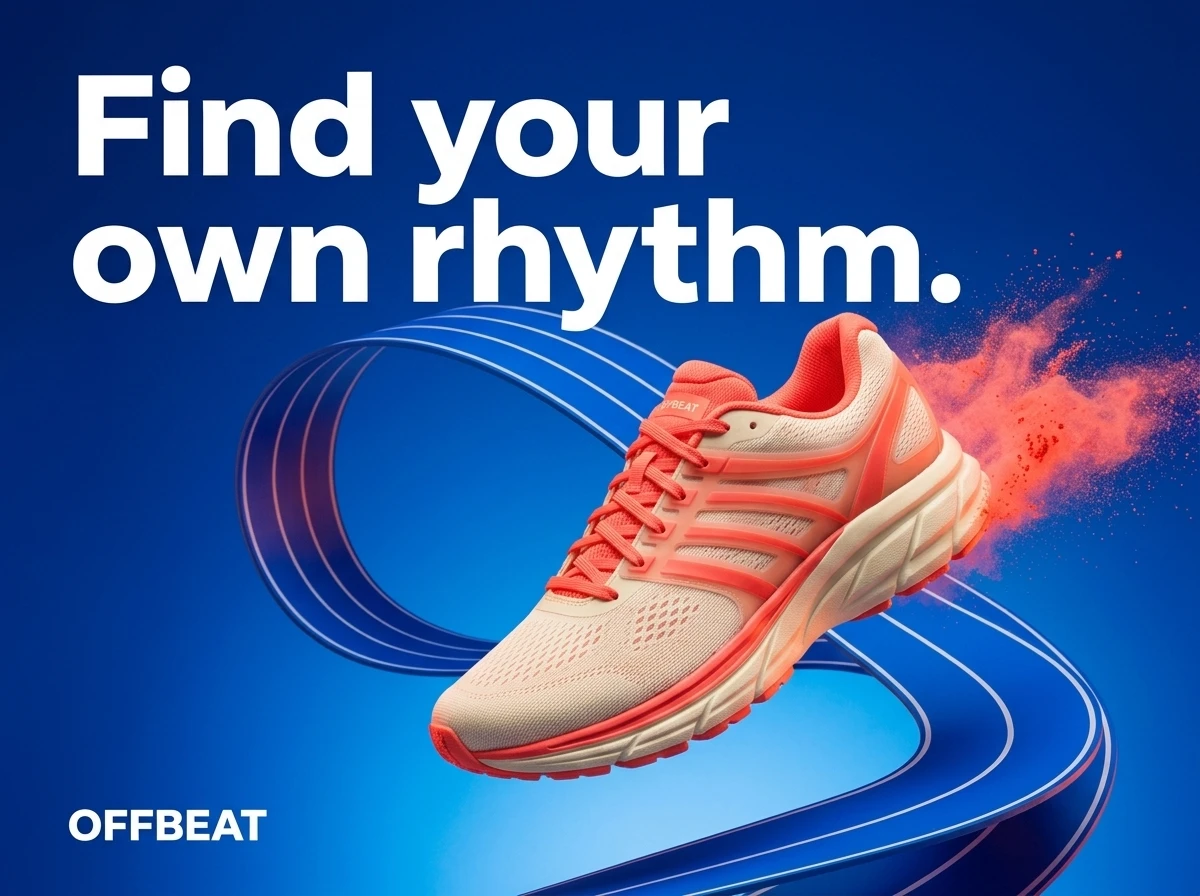
OFFBEAT footwear poster with the headline Find your own rhythm
OFFBEAT · Campaign image created in Mozify
INSIDE THE EXAMPLE

The reference. The edit. The details that changed.

These fictional campaigns were created in Mozify with Nano Banana 2. Each pair shows the actual scene supplied to the edit and the selected poster output.

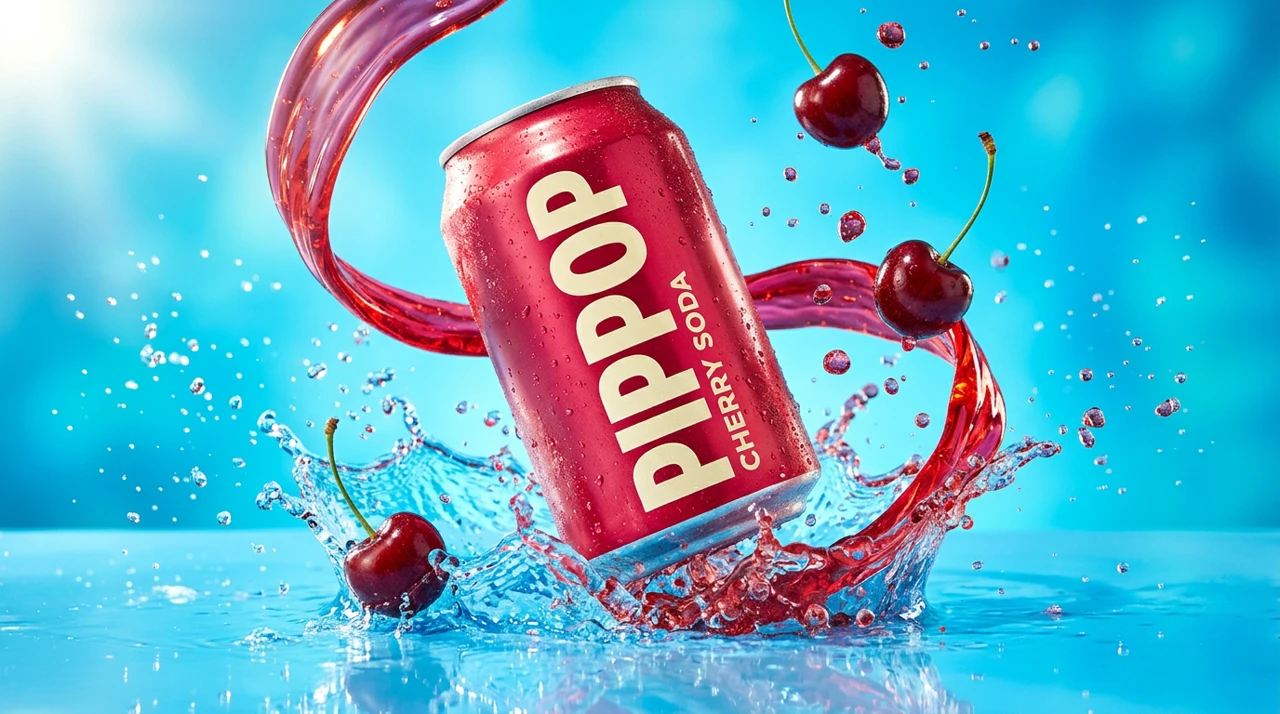
PIPPOP cherry soda scene used as the image reference
Input · scene reference
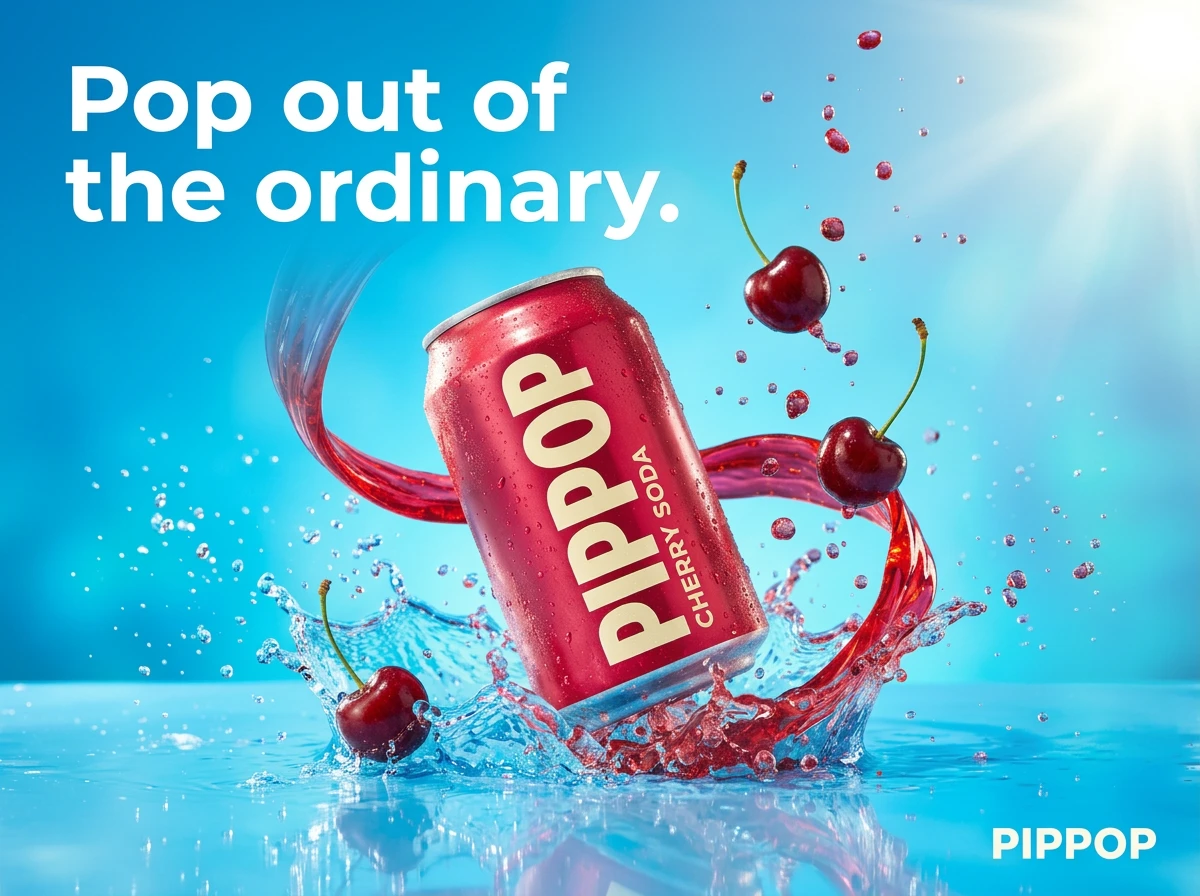
Selected red and cyan PIPPOP campaign poster with its headline
Output · selected poster
NANO BANANA 2 · EDIT / REFERENCE

PIPPOP / Food & drink

Develop the cherry soda scene into a red-and-cyan poster with one clear campaign headline.

What to look forCompare the can silhouette and label, then read the headline. The reference already contains the product scene; the edit develops its campaign layout.
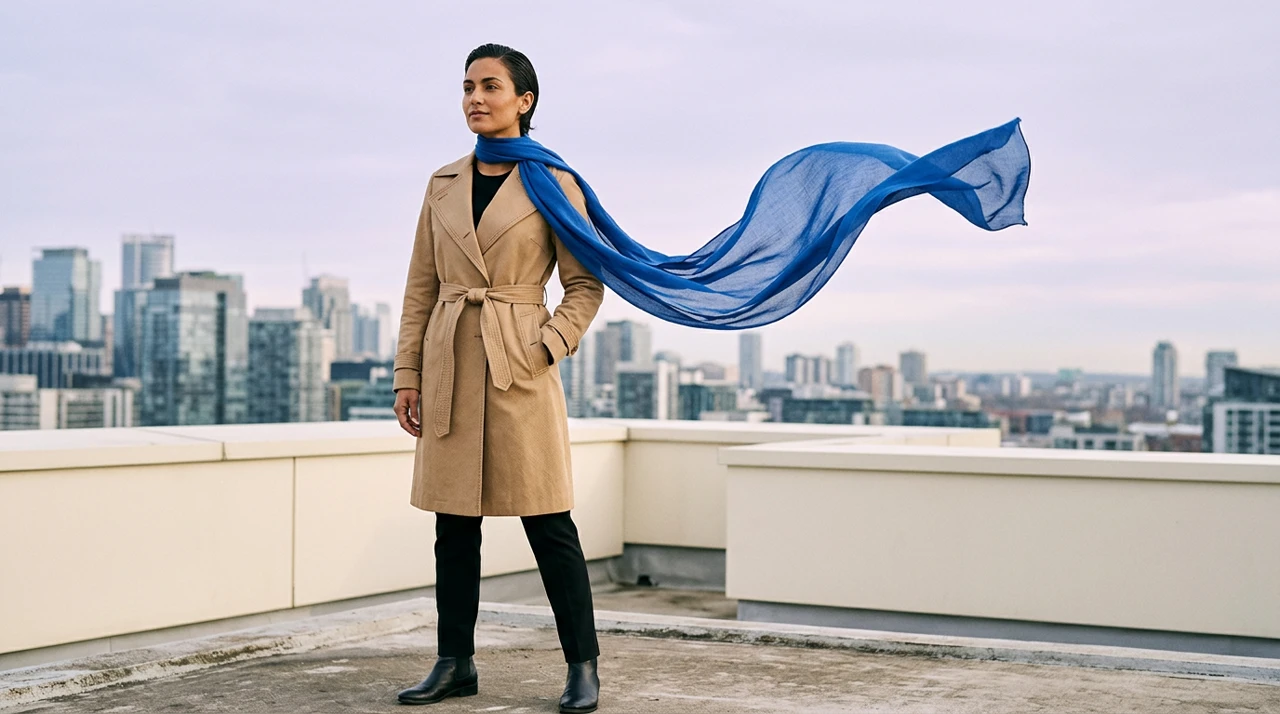
AFTER RAIN fashion scene with a sand coat and cobalt scarf
Input · scene reference
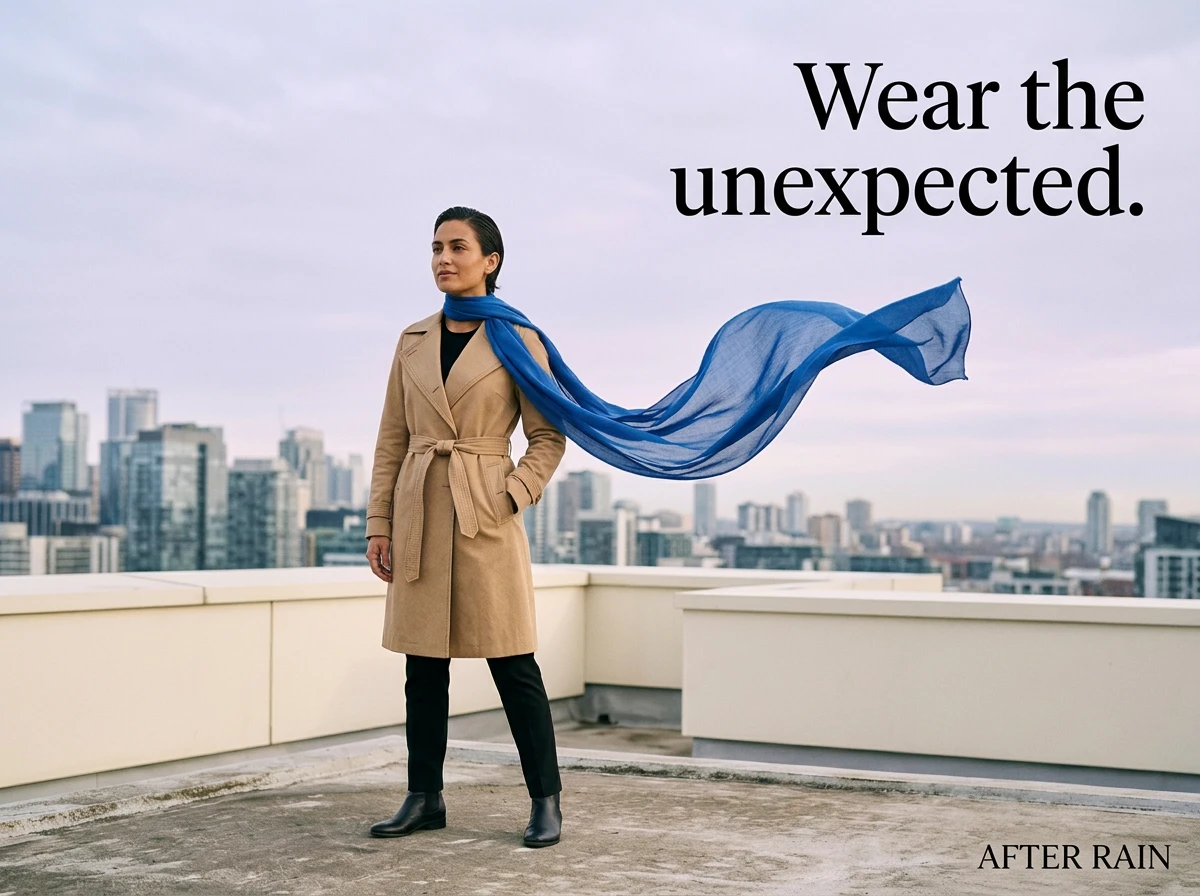
AFTER RAIN campaign poster developed from the fashion scene
Output · selected poster
NANO BANANA 2 · EDIT / REFERENCE

AFTER RAIN / Fashion

Build a fashion poster around the sand coat and cobalt scarf, with a single campaign headline.

What to look forCompare the face, coat and scarf with the source. Check the relationship between the subject and the new headline placement.

HOW IT WORKS

How to use Image Studio in Mozify.

Follow the steps below. Open any screenshot to see the controls at full size.

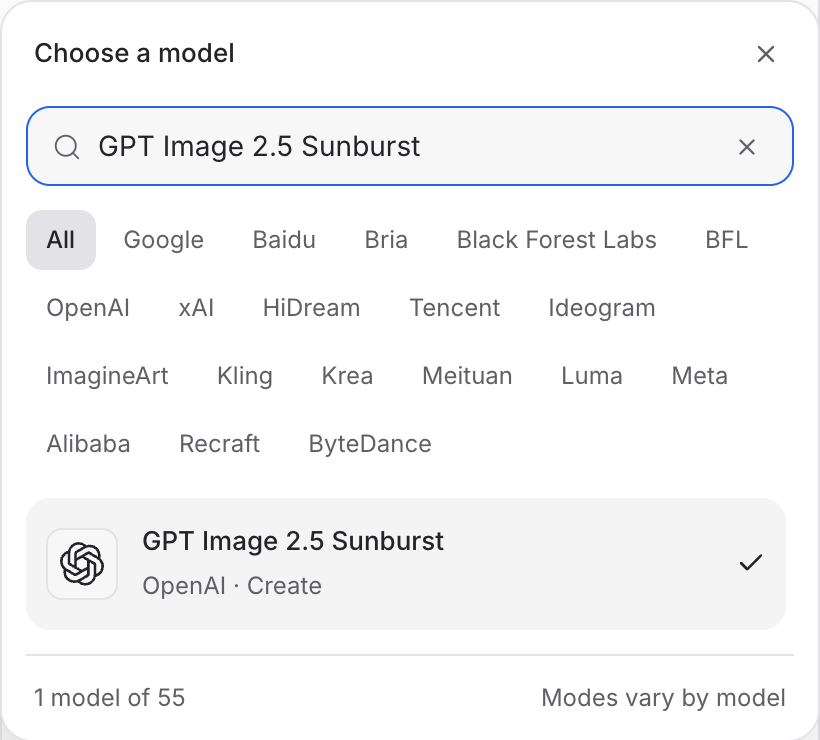
  1. Choose an image model.

    Open Image Studio and choose a model. Start from text, or use a model with reference support when you already have a product photo.

    Mozify GPT Image 2.5 Sunburst: find the model in the picker
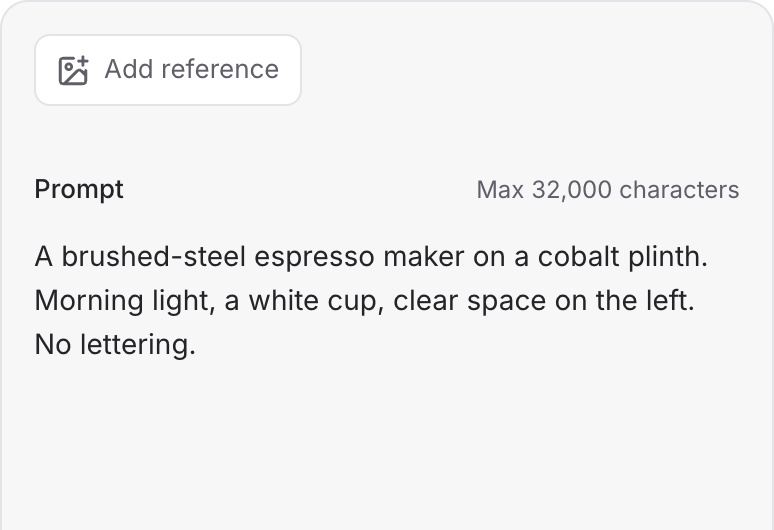
  2. Describe your image.

    Write the subject, setting and light. Use Add reference to supply an image when your brief calls for an edit.

    Mozify GPT Image 2.5 Sunburst: write the scene prompt
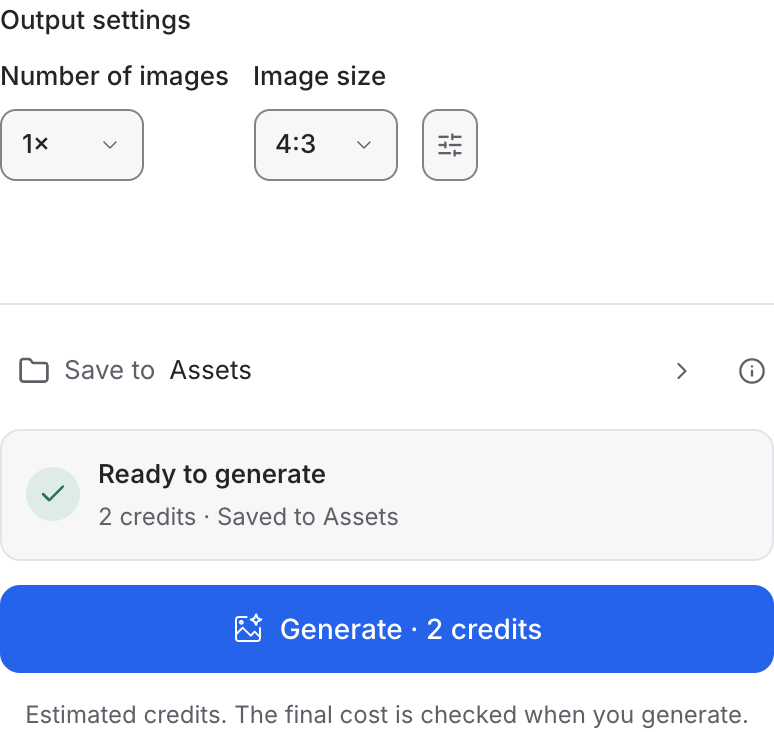
  3. Set the output and generate.

    Choose the available image settings and review the credit quote. Click Generate, then inspect and save your selected result.

    Mozify GPT Image 2.5 Sunburst: choose output settings
IMAGE MODELS

Choose the inputs your image needs.

Open a model guide to compare its modes, prepare the inputs and explore a specific creative brief.

Explore models from the Mozify studios.

Open a guide to explore the inputs and a practical brief. Current availability and credit quotes are shown in your workspace.

Questions, answered

Yes. Upload a supported image or choose one from Assets, select a model with reference or editing support, and describe the changes. A clear, well-lit reference helps you communicate the details that matter.

LET’S MAKE SOMETHING

Start your next project in Image Studio.

Bring your product, your brief or your next big idea. Start creating in Mozify.

Explore free, no card required. A paid plan is required to generate and export.