Your next campaign.Fewer repeat steps.
Start with a ready-made workflow for campaign images, product clips or new ad formats. Add your product, run the connected steps and reuse the setup for your next brief.
Explore free, no card required. A paid plan is required to generate and export.
Follow a workflow that actually ran.
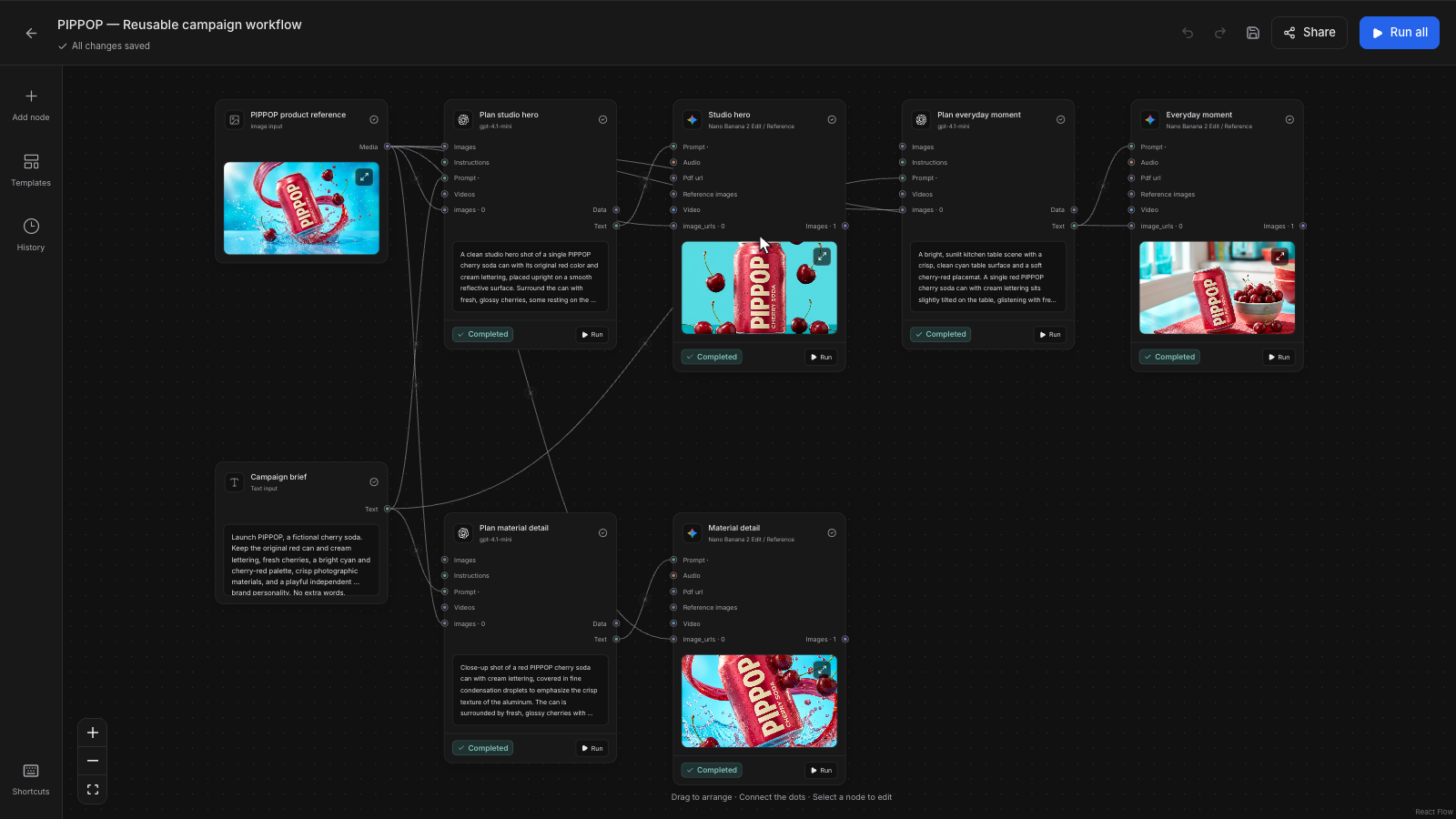
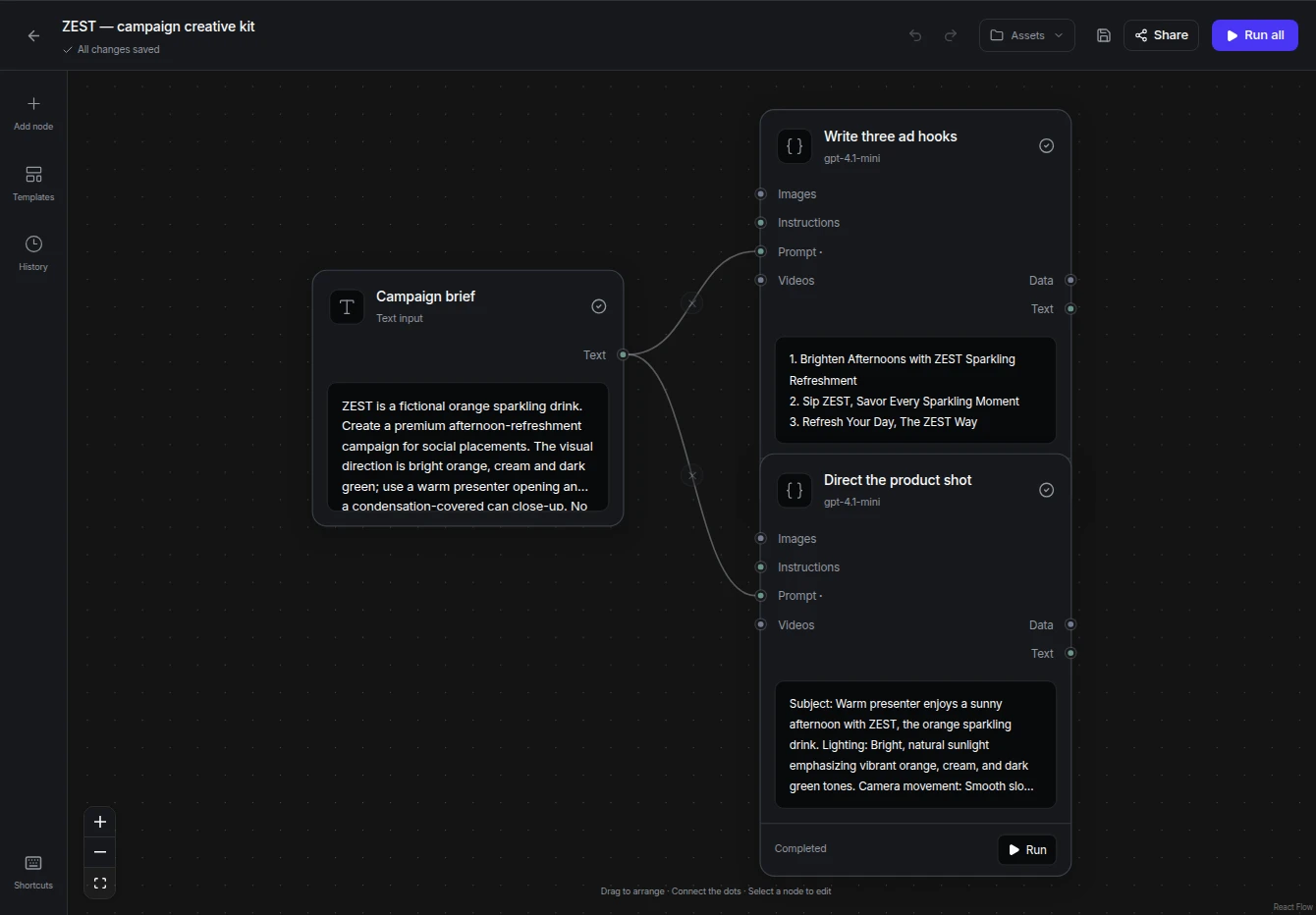
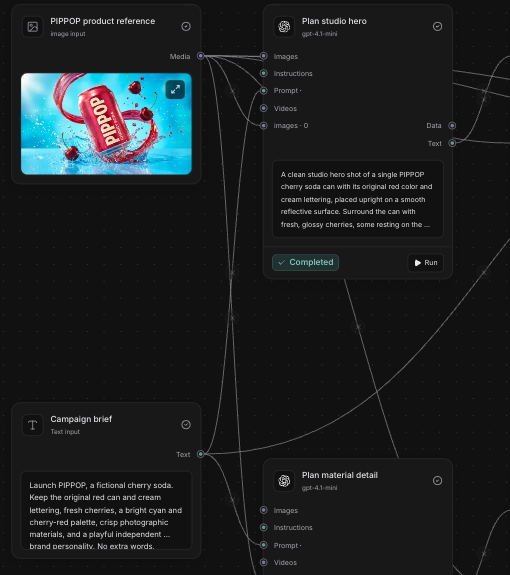
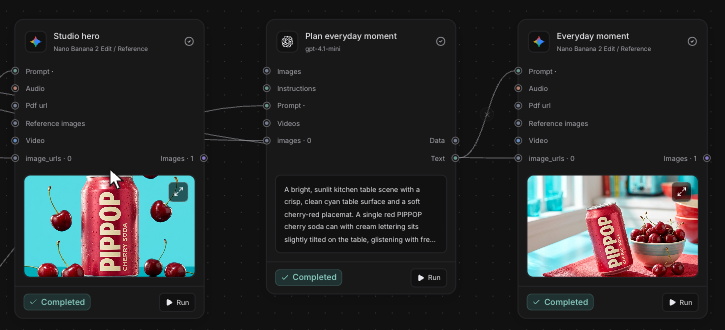
The PIPPOP canvas above shows a Campaign images workflow with one product reference, a brief and three generated images. Below is a separate planning workflow whose outputs are headlines and shot direction.
Know what each workflow produces.
- Campaign images · canvas above
- An eight-node flow connects a product reference and brief to text planning and three Nano Banana 2 image results.
- Campaign planning · screenshot
- This run produces headlines and shot direction. Those outputs are text to use in production briefs.
- Your next run
- Inspect the connected inputs, model settings and outputs before adapting the workflow for another product.
How to use Workflows in Mozify.
Follow the steps below. Open any screenshot to see the controls at full size.
Choose a starting flow.
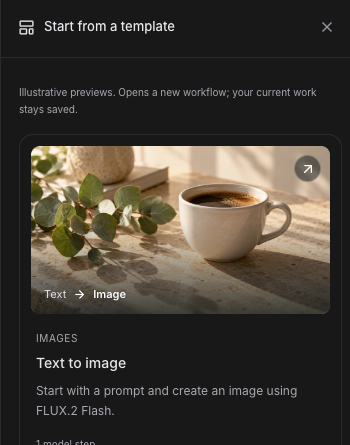
Open Workflows and choose a template, or start a blank canvas. Pick a flow that produces the images, footage or planning text you need.
Add your inputs and connect.
Supply the product reference and brief. Connect them to the planning and generation nodes, then choose the models and settings for each step.
Run and keep the results.
Review the estimate and run the workflow. Inspect the completed outputs, then save the flow to reuse with your next brief.
Questions, answered
The quote depends on the connected model steps and their settings. Review the cost before confirming the run. Your plan supplies the credits; you can reuse the saved workflow with new inputs.
Start your next project in Workflows.
Bring your product, your brief or your next big idea. Start creating in Mozify.
Explore free, no card required. A paid plan is required to generate and export.