Image to videofor your product.
Turn a product photo or campaign image into a moving shot. Add a camera move, a reveal or a little atmosphere, then use the clip in your next ad.
Explore free, no card required. A paid plan is required to generate and export.
See what the reference carries into the film.
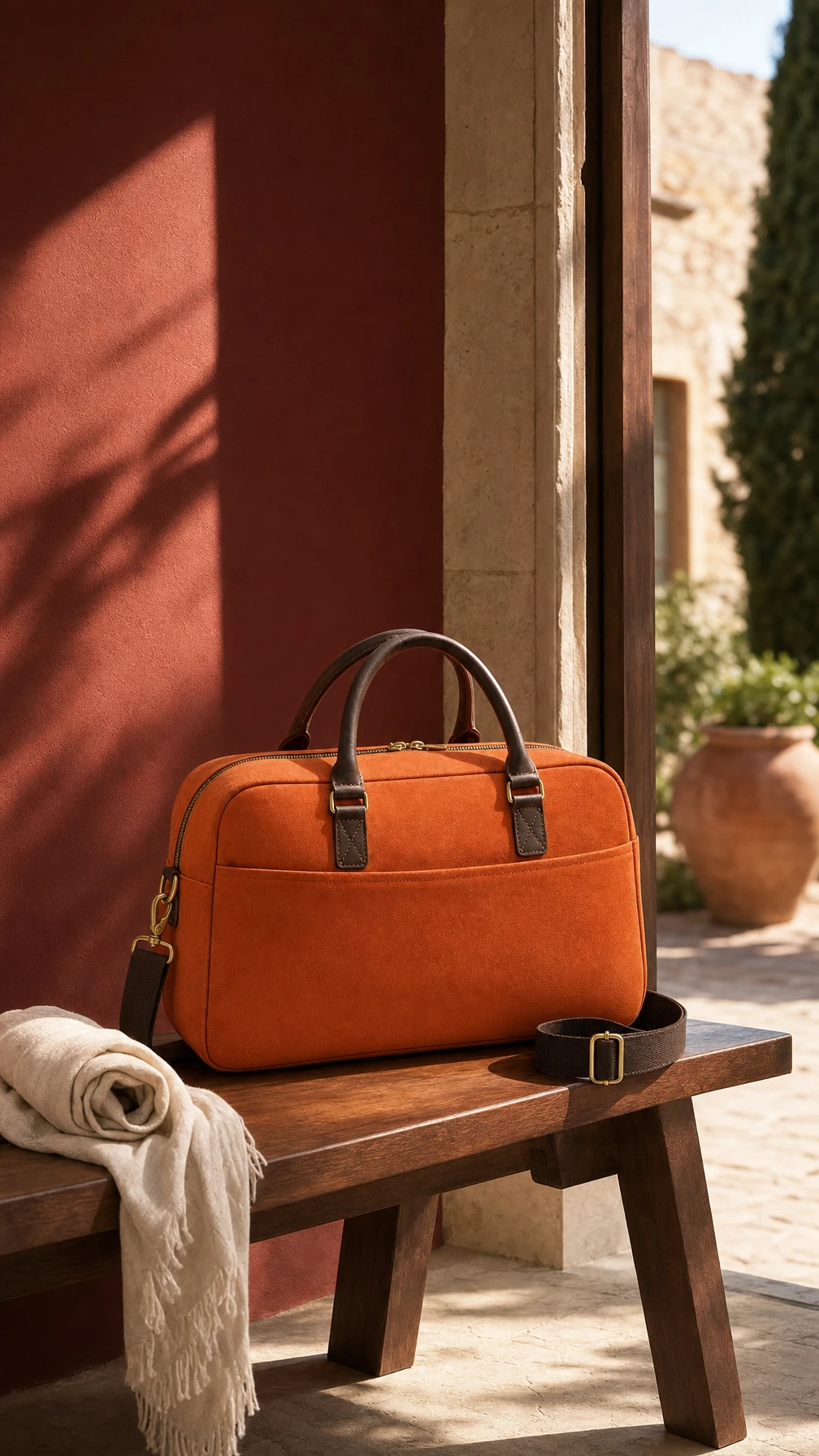
The source scene was created with GPT Image 2. Seedance 2.5 used it to create the product film. Compare the bag, handles and setting across the shot.
Give the movement a starting point.
The reference establishes the bag and its setting. The video brief adds a sequence: open the bag, pack it and head out.
How to use Image to Video in Mozify.
Follow the steps below. Open any screenshot to see the controls at full size.
Choose Frames or Reference.
Open Video Studio and select a model that accepts images. This example uses Kling O3 Pro’s Frames mode.

Add the frame and motion.
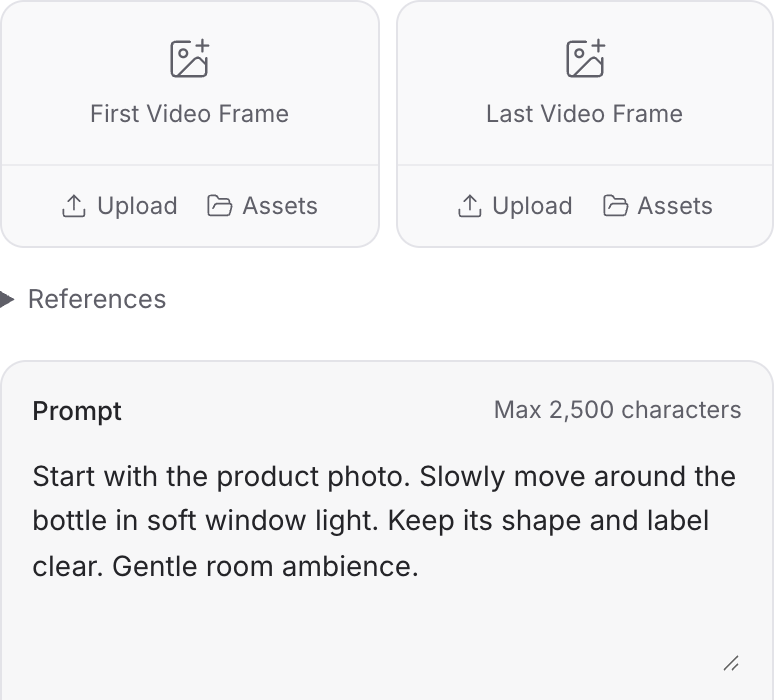
Upload a starting image or choose one from Assets. Describe the camera and subject movement; add an ending frame if the selected mode supports it.
Set the clip and generate.
Choose the available duration, aspect ratio and audio settings. Review the quote, generate, then compare the moving subject with your reference.

Choose the right starting point for the shot.
Open a model guide to compare its modes, prepare the inputs and explore a specific creative brief.
Explore models from the Mozify studios.

Gemini Omni Flash 1.1
Create from text or references, or edit existing video.

MiniMax H3 Max
Generate, stylize, extend and edit video in 15 modes.
Wan 3.0 Prime
Make videos up to 30 seconds with generated audio.
Seedance 2.5
Guide video with image, video and audio references.

Kling 4.0
Direct scenes with frames, references and video edits.

FLUX 3 Max
Create video from text, frames or timed keyframes.
Kling O3 Pro
Generate clips, edit footage and reuse references.
Veo 3.1
Create shots, connect frames and extend videos.
MiniMax H3
Create video from text, frames or media references.

Grok Imagine 1.5
Build short scenes from text and references.
Wan 3.0
Create video from prompts, frames or media references.

Luma Ray 3.2
Create clips, edit footage and change framing.

LTX 2.5 Pro
Start a video from text, an image or audio.
Open a guide to explore the inputs and a practical brief. Current availability and credit quotes are shown in your workspace.
Questions, answered
Inputs depend on the model. The workspace shows support for image references, starting or ending frames and, on some models, video references. Use the input mode shown for your selected model.
Start your next project in Image to Video.
Bring your product, your brief or your next big idea. Start creating in Mozify.
Explore free, no card required. A paid plan is required to generate and export.