Online video editorfor product ads.
Bring your generated clips and existing assets onto one timeline. Shape the sequence, add your message and export the format your campaign needs.
Explore free, no card required. A paid plan is required to generate and export.
Three placements. Three finished exports.
A separate ZEST campaign shows the result of an edit: generated presenter footage, product shots and titles exported for vertical, feed and square placements.
How to use Video Editor in Mozify.
Follow the steps below. Open any screenshot to see the controls at full size.
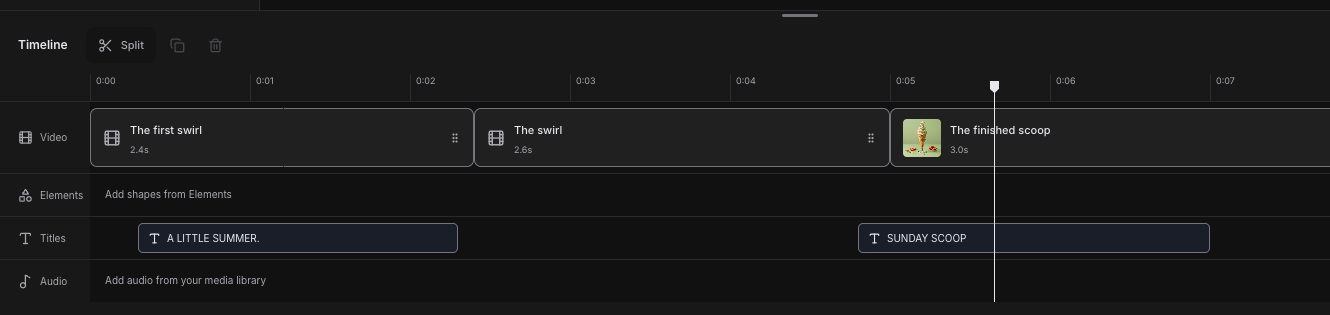
Arrange your footage.
Open an Editor project, add media from Assets and place clips on the timeline. Trim and order them around the story.
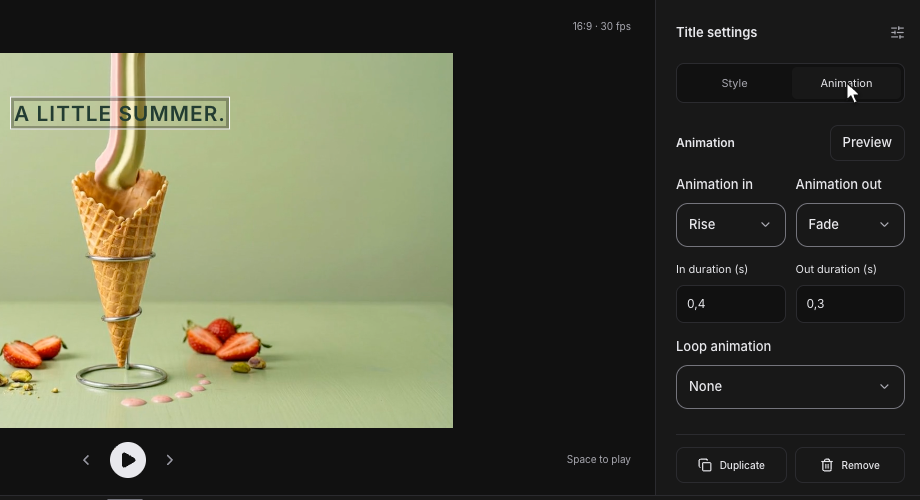
Add titles and finishing details.
Select a title or clip to adjust its appearance and timing. Add text, transitions and audio where the edit needs them.
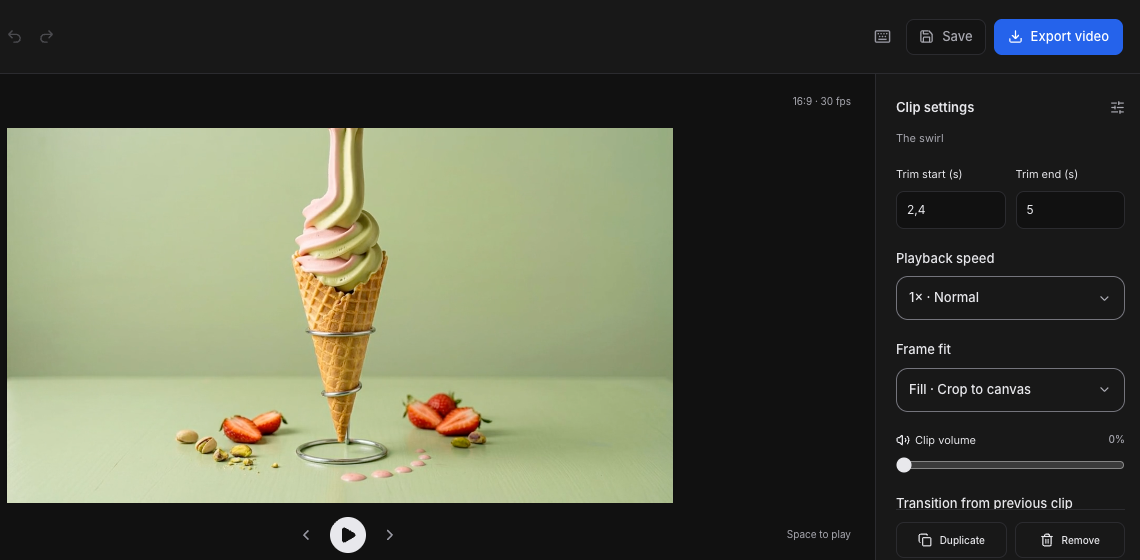
Preview and export.
Play the complete sequence to check picture and sound. Choose Export video when the timing and final frame are ready.
Questions, answered
Yes. Upload supported video, image and audio files or choose generated assets from your workspace. You can edit without starting a new AI generation.
Start your next project in Video Editor.
Bring your product, your brief or your next big idea. Start creating in Mozify.
Explore free, no card required. A paid plan is required to generate and export.