
THE ZEST CAMPAIGN / A PRACTICAL GUIDE
From a product photo
to a finished video ad.
Here is how we built a 14-second ZEST ad in Mozify: the starting reference, the generated assets, and the choices made in the Editor.
By the Mozify team · Updated September 28, 2026 · Fictional sample product
Start with the result.
The presenter opens the story. Product footage carries the middle. A packshot and a final line close it. The original voice continues over the cutaways so the ad feels like one message.
- Final length
- 14 seconds
- Exports created
- 9:16, 4:5 and 1:1 MP4
- Tools used
- Image generation, video generation and the Mozify Video Editor
1. Give the product a clear starting point.
Use a reference that shows the product shape, label and colors clearly. For this demonstration we generated a fictional orange sparkling drink called ZEST. For your own campaign, start with a product photo you can use.
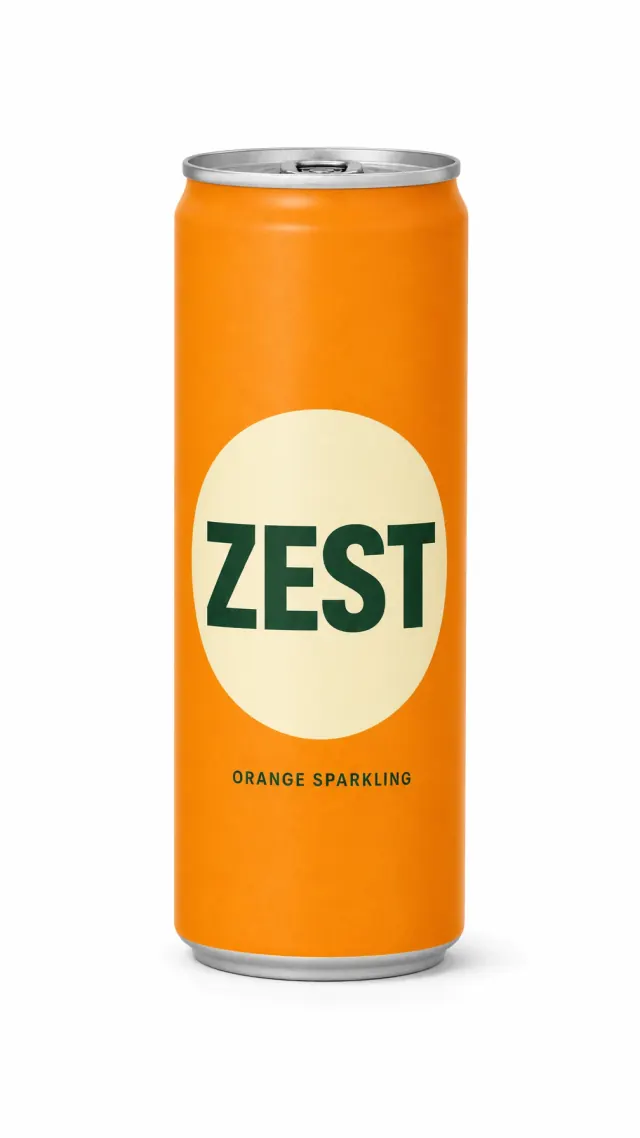
Keep brand details visible when you review the result. An attractive scene is useful only if your product is still recognizable.
2. Create a scene with a purpose.
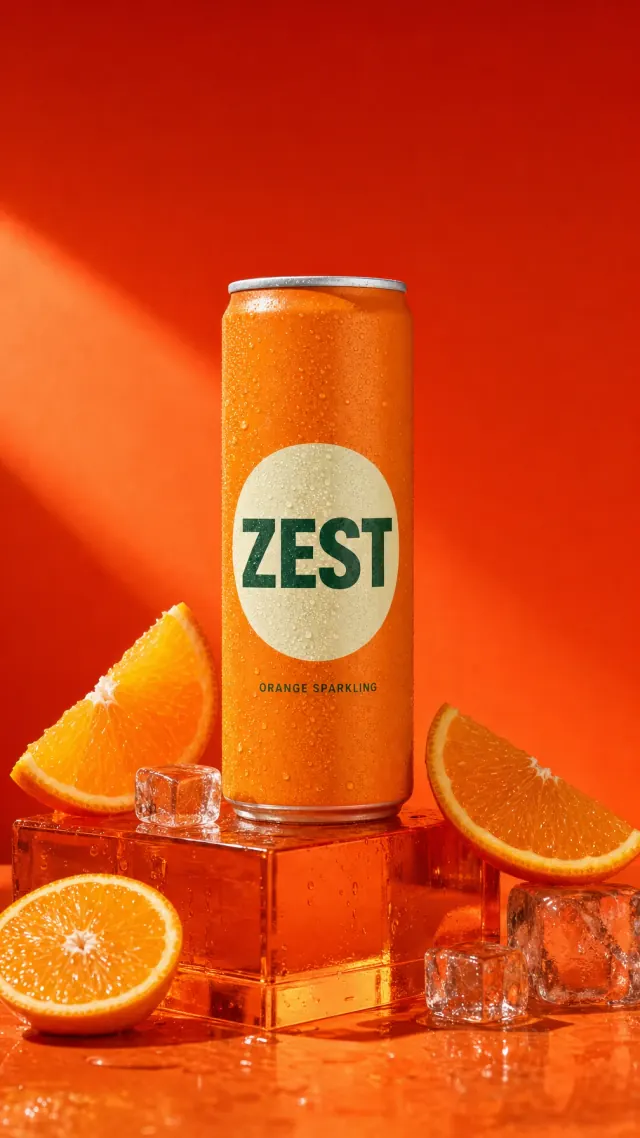
We used GPT Image 2 in Mozify to place the same can in a bright citrus setting. The orange palette, condensation and ice gave the next shot a clear visual direction.
A useful image brief describes what must stay unchanged, where the product sits, how it is lit and what belongs around it. Avoid filling the frame with elements that compete with the packaging. Open the image at full size before using it as a video reference.
Explore product image creation ↗3. Give the footage something to do.
The ZEST product film uses three actions: a citrus splash, a close-up pour and a final can-and-glass reveal. The eight-second clip was generated with Seedance 2.5 through Mozify. Its image reference establishes the product and scene; the prompt directs the action and cuts.
A prompt structure to adapt
Preserve the product and label from the reference. Open with a decisive action, cut to a close detail, then finish on a clear product reveal. Specify each action, the camera view and the timing of the cuts.
For the presenter opening, the requested line was: “A little citrus. A little sparkle. Your afternoon, refreshed.” Watch the take with sound and choose the part that supports your message.
For a script-led presenter, open Talking Head, choose an avatar and preview the voice before creating your video.
4. Build the ad on the timeline.
Arrange the chosen assets in Video Editor. Trim each shot, keep the narration continuous and add a closing title.
- Use the first 2.75 seconds for the presenter opening.
- Follow with the eight-second product film, while the presenter’s voice continues across the opening cutaways.
- Close with a 3.25-second packshot and the final message.
- Review the title timing, then export 9:16, 4:5 and 1:1 versions.
Build your own product story.
Start with your product image. Review the scene, create the footage and bring the pieces together in the Editor.
Start with a product image ↗